.svg)
Navigating PIPER's Property Search
Updated: April 17, 2026
Overview
Once you’ve signed in to PIPER, you’ll land on the main property search page. This is where you can search for properties, manage data, and access all core features.
1. Navigation Menu
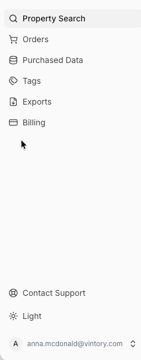
On the left side of the screen, you’ll find the main navigation menu. This is your control center for accessing different features:
Menu Items:
- Property Search – Search for new properties
- Orders – Track purchased data orders
- Purchased Data – Access purchased datasets and export
- Tags – Organize and categorize properties
- Exports – Review export log
- Billing – Manage your account and credit balance
- Contact Support – Contact the Piper support team
- System – Select the appearance of your system
- Settings – Manage your account profile details
2. Order Navigation Menu
At the top of the Property Search, the Order navigation allows you to search, review, and order your data. Click on each one to navigate the ordering process.
3. Property Search
Location Search
- Located in the center at the top of the page
- Search for a city or area to begin your data search

4. Filtering Your Search
Piper allows you to refine your property search using multiple filters:
Data Type Filters
- STR (Short-Term Rentals) - Verified Homes
- STR Likely Condos
- Absentee Owner
- Big Box
- OTA
- Permit
Property Details
- Single
- Condo
- Multi
- Niche
- Hotel
- Other
Additional Filters
- Property Characteristics
- Amenities
- Host Information
- Listing Information
📌 Tip: Combining multiple filters helps you build highly targeted property lists.
5. Getting Started
To begin:
- Select a market (city or area)
- Apply relevant filters
- Start building your property data order